
YOUR GUIDE TO THE WIRE
The Wire manual.
News, companies, contracts and sources. A practical guide to every part of the Defense Frontier Cyber Wire.
You can read this guide without signing in. Screenshots show example records from the September 2026 interface; headlines, counts and available controls change with the data and your access.
No matching topic
Try a shorter phrase, such as login, invoice, company or download.
01 · Start here
Your first five minutes
The DFC Wire brings together defense, frontier technology and cyber news, with the business context close at hand: contracts, capital, companies, agencies and the original sources.
- Get the day’s pictureOpen the Wire and read The Desk. Pick a headline to open its story in the feed.
- Follow the evidenceRead the excerpt, compare other outlets, and use READ AT SOURCE for the publisher’s full article.
- Go one level deeperUse DEALS for transactions, UNIVERSE for organizations, CALENDAR for upcoming events, and REPORTS for conference coverage and the research library.
Reading for a briefing?
Start with The Desk, choose a category, then set SORT: LATEST. Open the most relevant stories and follow their source links.
Researching a company?
Find it in Universe, open its record, then explore its backers, recent coverage and linked organizations. Search Deals separately for its transactions.
The Wire is a research starting point. Automated grouping, summaries and extracted figures can be wrong. The source links let you check the underlying report.
02 · Access
Sign in with an email link
Use the email address attached to your DFC account. Sign in with a one-time link sent to your inbox; no password is needed.
- Open dfcwire.comChoose email sign-in
- SEND LINKYour account email
- Open your emailUse the newest link
- Read the WireIn that browser
- Enter your emailAt the Wire, find the email field and press SEND LINK.
- Open the latest linkCheck your inbox and spam folder. A sign-in link works once and is valid for 15 minutes. Open it in the browser where you want to read.
- Return normallyBookmark dfcwire.com, not the link in the email. Your browser remembers the session; request another link when prompted or when using another browser or device.
Starting a subscription
Choose a plan on Plans & pricing, complete the checkout shown there, and follow the welcome screen and sign-in email. Keep the same email address through checkout and sign-in. If payment completed but access has not arrived, follow the welcome page’s recovery instructions or contact support before starting a second subscription.
Using an invitation
Open the link in your invitation email. If you are given an invitation code, enter it on the invitation page. The page identifies the offer and takes you through the appropriate activation or checkout. Check the displayed price, duration and renewal terms before accepting. An invitation code activates an offer; it is not your everyday sign-in method.
“If that address is on the wire…” is a privacy-preserving response. It does not confirm that an account exists or that an email was delivered. If nothing arrives, check the spelling, the email used for the account, spam and corporate filtering. Repeated requests can be temporarily limited.
SIGN OUT in the footer ends the session in this browser. It does not cancel a subscription. Private browsing and clearing site data may require a fresh sign-in and can reset saved display preferences.
03 · The terminal
Find your way around
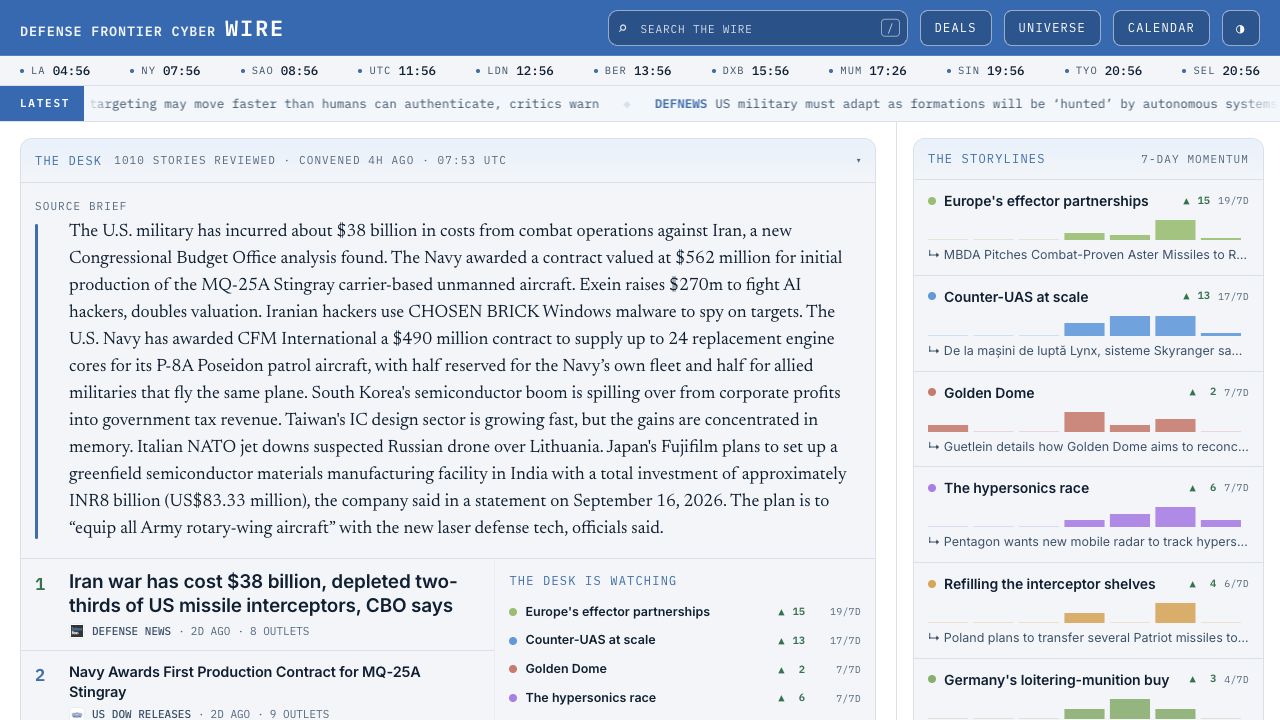
The terminal is the Wire’s home page. The same header stays visible throughout the site as you scroll: search, the main destinations, the light/dark switch, world clocks and the Latest headline strip. Search from another page opens matching news on the Wire. On a phone, swipe the clocks to see more cities. Use the pause button beside Latest to stop or resume the moving headlines.
 Open full-size ↗
- Masthead: search, Deals, Universe, Calendar and display controls.
- World clocks & Latest: local times across major cities and a rolling headline strip. Select a headline to open its story.
- The Desk: the current memo or Source Brief, selected headlines, watched storylines and most-covered organizations.
- Side panels: storylines, dates, filings and social links alongside the news.
The Desk: the editorial starting point
Select THE DESK to collapse or expand the briefing. Numbered headlines open stories in the feed. THE DESK IS WATCHING narrows the feed to a storyline; MOST COVERED narrows it to an organization. Coverage counts describe mentions in the stated window, not an assessment of company quality.
A SOURCE BRIEF label identifies a factual fallback assembled from source material. Other memos can include automated synthesis. The timestamp says when the briefing was assembled; it is different from the publication time of each story. “Stories reviewed” describes the processing pool, not a promise that a person read every item.
Refresh without losing your place
The DATA … OLD label tells you the age of the loaded edition. When the new stories prompt appears, select it to reload. The initial recent stories may load before the rest of the rolling window. If the page says only the last 24 hours loaded or an excerpt did not arrive, reload and try again.
Press the DFC Wire wordmark on the terminal to clear search and company selection and return to the top. Category, source, region, range and display choices stay as selected. On other pages, the wordmark or ← TERMINAL takes you home.
04 · Find the news you need
Search, filter and widen the view
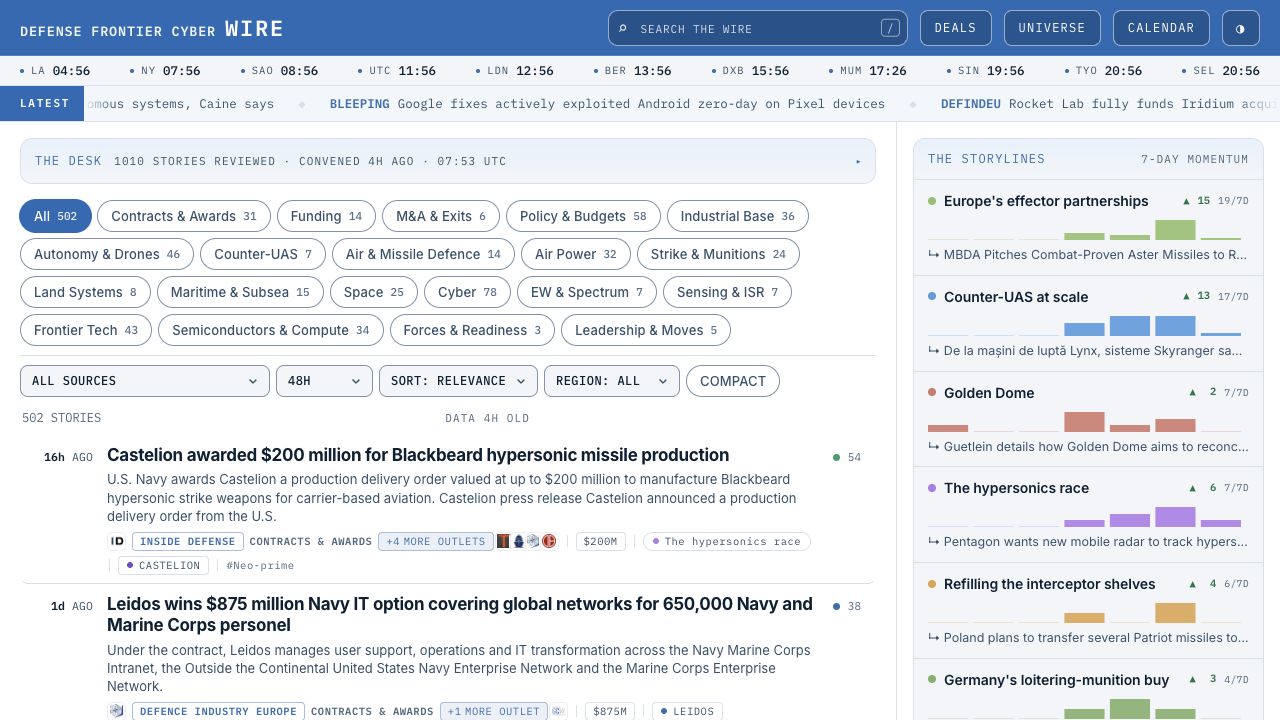
Type a company, topic or phrase into SEARCH THE WIRE, or press /. Search narrows the loaded feed by headline, summary, source and tags. It works together with the other filters.
 Open full-size ↗
| Control | What it does |
|---|---|
| Category buttons | Choose a beat such as Contracts & Awards, Funding, Cyber or Space. All removes the category restriction. On a smaller screen, MORE reveals additional categories. |
| Source | Show stories led by a particular publication or source. Choose ALL SOURCES to widen the view. |
| 24H / 48H / 7D / 14D·ALL | Choose the time window. Some high-priority stories are held beyond the shorter window, up to twice its length. 14D·ALL shows the full loaded rolling window. |
| Relevance / Latest | Relevance puts editorially ranked stories first. Latest sorts by publication time. A high relevance score is not a confidence rating or an investment recommendation. |
| Region | Choose Americas, EMEA, APAC or Global Desks. This uses the source’s assigned region; it is not a precise filter for where an event happened. |
| COMPACT / COMFORTABLE | Switch row density. The button names the layout you will switch to. |
| LOAD MORE | Add more matching stories to the page. It does not extend the date window. |
Looking for older coverage?
The terminal provides a rolling window, not a separate full-history archive search. Start with 14D·ALL. For organization history, open that record in Universe and read its Latest coverage and Research history. A Deals dossier has its own dated coverage trail. These histories have different scopes and may not contain every article.
The ALSO IN THE UNIVERSE / THE CALENDAR links beside search results carry the same query into those pages. Their search fields cover their own records; the terminal does not search every field of every page.
- No results?
- Try a shorter name
- Widen to 14D·ALL
- Reset each active filter
Category, source, region, range, sort and density choices are remembered in this browser. If the feed looks unexpectedly narrow on your next visit, check those controls and any active company or storyline first.
05 · From headline to evidence
Open a story, then follow its sources
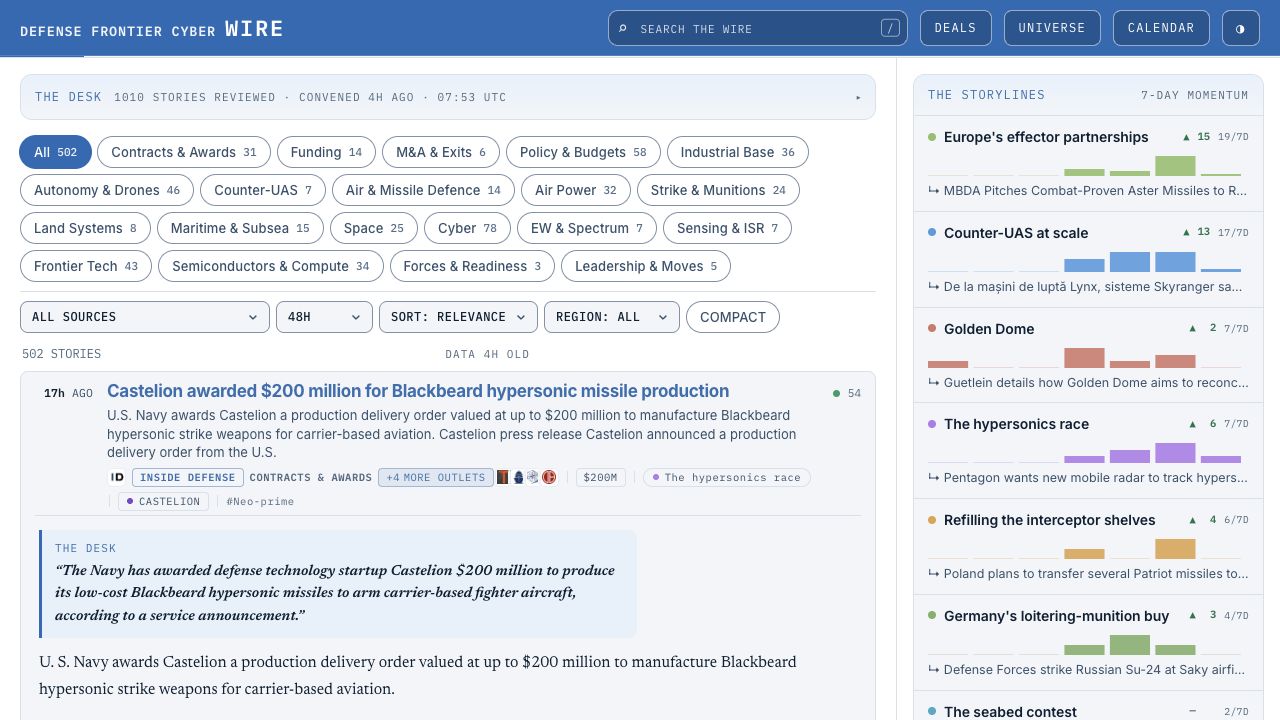
Click or tap a headline to expand the story in place. Open the publisher’s full article with READ AT SOURCE ↗. The Wire carries an excerpt and context; a publisher’s subscription may still be required at the source.
 Open full-size ↗
| Label or control | How to use it |
|---|---|
| NEW / … AGO | NEW marks items first seen within roughly the last two and a half hours. The age relates to the source’s publication timestamp; it is separate from the edition’s data age. |
| MORE OUTLETS | Expand other coverage grouped as the same story. Choose an outlet’s link to compare reports. Several outlets can carry the same syndicated reporting. |
| Money chip | A figure found in the headline. Read the excerpt or deal dossier to distinguish price, valuation, ceiling, obligation and other amounts. |
| Organization name | Open a compact About… card with available facts and source links. Close that card with its close button or Esc. A name match is not proof of a company’s role in a transaction. |
| Storyline name | Narrow the feed to that ongoing topic. Select it again to release the storyline filter. |
| Research a transaction | Open DEALS in the masthead, search the parties or system, then select a row to open its dossier. Full ledger access depends on your account. |
| EVENT / THE STORY SO FAR | Read the dated development trail or earlier related coverage when available. Click through to the underlying report. |
| Primary source filing | When present, this link opens the organization’s own filing with the named registry. For court records, use the COURTS tab in The Docket. A document’s existence is not a finding on its merits. |
| CONTEXT | Background on a named organization, with available facts and a Wikipedia source link. These cards are separate from the fuller Universe record and may have a different research date. |
| SIGNAL ON THIS STORY | Related social posts, when collected. Open a post at its source; engagement is not verification of its claims. |
| SAME STORY / RELATED ON THE WIRE | SAME STORY compares outlets covering the same event. RELATED ON THE WIRE links to different articles selected as relevant. Their labels distinguish duplicate coverage from further reading. |
| Translation / original language | Where available, the Wire shows an English headline with an original-language cue. Follow the original article to check wording. Untranslated text can still appear when a translation is unavailable. |
| LISTEN / STOP | Read the displayed text aloud with your browser’s speech support. Available voices and pronunciation depend on your device. Stop playback before switching tasks. |
| COLLAPSE / related stories | Close the current excerpt or open another relevant story. “Same story” and “related” are different relationships. |
Not every story has every card. If a publisher supplies no text, the Wire may show headline only and send you to the source. Missing detail means it is not available in this record, not that the underlying event has no detail.
06 · Around the feed
Use the side panels
On a wide screen, supporting panels sit beside the feed. On narrower screens they move above it and fold down to their headings. Open a panel with its heading or arrow.
- Open a panel
- Choose a topic or tab
- Read the entry
- Follow the original source
The Storylines
Select a storyline to filter the news. The bars show activity across seven days; /7D is the count for that period, and the arrow shows changing momentum. This measures coverage activity, not success or failure in the real world.
The Calendar
Scan upcoming dates, then choose FULL CALENDAR → for the searchable diary. An event can appear only when the current data contains it.
The Docket
Switch between SEC and COURTS; WORLD appears when international filing data is available. Select an entry to read the originating filing or case page. “Nothing on the docket” describes this feed’s window, not the whole industry.
The Signals
BSKY is Bluesky, REDDIT is Reddit and HN is Hacker News. Select a tab, then a post to open it at the source. Counts and engagement describe the collected posts; they are not endorsements or verified market sentiment.
The Trades, when populated, links to publishers and their subscriptions. The Wire does not include those publishers’ paid access. Some panels depend on available data; a hidden panel is not necessarily a problem with your account.
Not a current DFC reader feature: a companion market index, live share-price terminal and podcast directory are not enabled in this release.
07 · Deals
Find the transaction behind the news
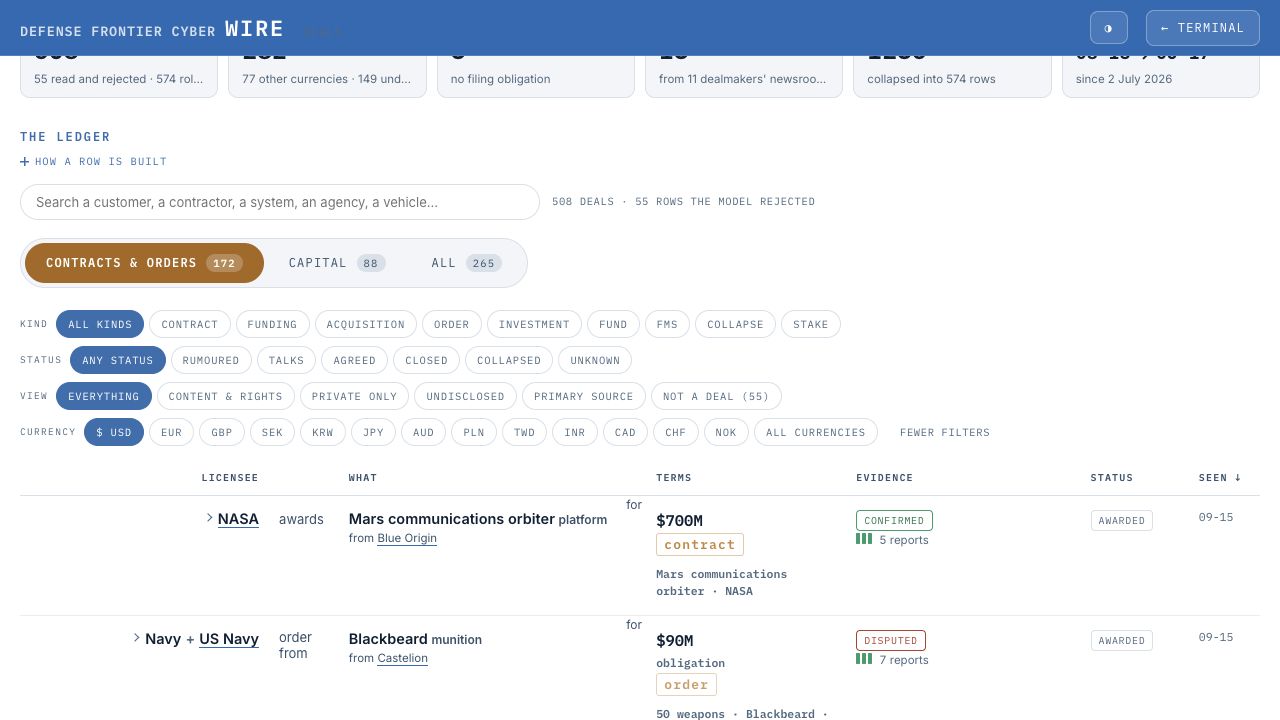
Choose DEALS in the masthead. The ledger groups coverage into transaction records. Full access includes its search and filters; accounts without full ledger access see a limited sample and an access prompt.
 Open full-size ↗
- Choose a viewCONTRACTS & ORDERS covers procurement; CAPITAL covers company and financing transactions; ALL brings the families together.
- Narrow the tableSearch a customer, contractor, system, agency or vehicle. Add a kind or status filter. Open view and currency… for further choices.
- Inspect a rowClick a row to expand its dossier. Click sortable column headings such as Value, Evidence or Seen to change order; click again to reverse it.
The extra view controls include PRIVATE ONLY, UNDISCLOSED, PRIMARY SOURCE and NOT A DEAL. The last shows retained rows rejected as transactions, so they can be inspected. An inherited CONTENT & RIGHTS filter may also appear; on this Wire, start with the Contracts & Orders and Capital tabs.
Currency buttons filter the records. ALL CURRENCIES does not convert amounts into a common currency. If a figure is missing, that means no usable figure is recorded, not zero.
Understand the labels
| Dimension | Read it as |
|---|---|
| Kind | What sort of transaction is reported: contract, order, funding, acquisition, investment, stake, fund, FMS and other kinds. |
| Status | The reported stage: rumoured, talks, agreed, regulatory, closed, awarded, proposed, collapsed or unknown, as applicable. It is not a forecast of completion. |
| Evidence | The ledger’s assessment of the available reporting, with labels such as reported, corroborated, confirmed, disputed or unverified. Open the dossier to see the evidence and who made the claim. |
| Headline only / reading unsure | The extraction had limited source text or uncertainty. Do not treat the label “confirmed” elsewhere in the row as a substitute for reading this caveat. |
| Ceiling / obligation / valuation | A maximum available amount, an amount committed, and a company valuation are different facts. A contract ceiling is not cash paid; a valuation is not capital raised. |
| Seen / reports / related | Coverage dates and the reports attached to a record. A related lawsuit or regulatory update is not automatically a second transaction. |
08 · Deals, opened
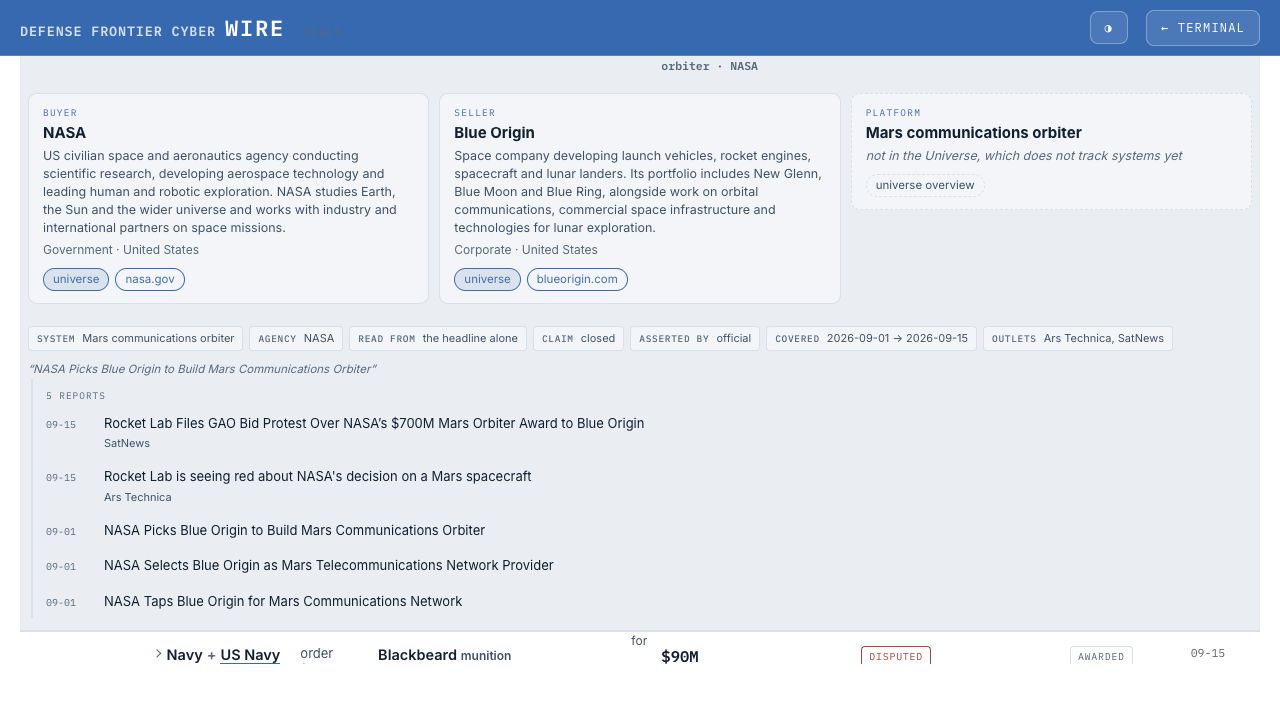
Check parties, terms and the source clause
 Open full-size ↗
- Party cards identify the buyer, seller, investor or asset where recorded. Use universe to open the exact organization record, and the website link for its own site.
- Missing records stay visible. “Not in the Universe” means there is no resolved record; “universe overview” opens the directory, not an exact match. Systems and products may not be tracked as organizations.
- Terms can include a system, quantity, contract period, agency, procurement vehicle, stake and value basis. Fields appear only when recorded.
- Claim, asserted by and quoted clause show the reported certainty, speaker/source type and wording used for extraction. A company announcement establishes what it announced; independent confirmation is a separate question.
- Dated reports and related coverage let you read the development of the deal. Original headlines open the source. A source badge or record is not a guarantee that all extraction is correct.
Charts below the ledger
What kind of money and How firm the claim is summarize types and claim language. Priced deals, on a log scale uses multiplicative spacing: equal distances do not mean equal money increments. What the filings say links to primary documents; From the dealmakers themselves collects newsroom statements. Read each chart’s caption and scope rather than adding all displayed values together.
Use How a row is built above the ledger for the method. If a field or company link looks wrong, send the deal URL, the field and the supporting source through the Contributor Desk or email hello@axiom.vc.
09 · Universe
Find the organizations that matter
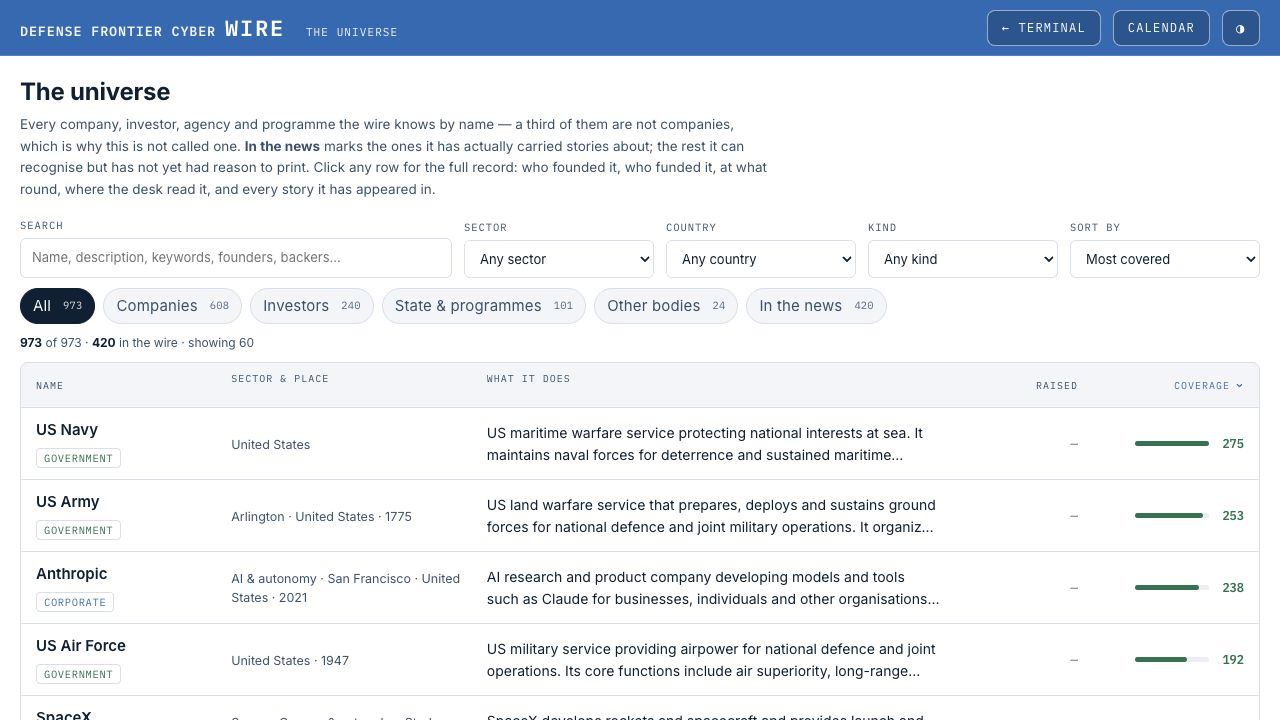
Open UNIVERSE for companies, investors, agencies, programmes and other bodies. It includes organizations the Wire recognizes even when it has not yet carried a story about them.
 Open full-size ↗
- Search or browseType a name or term. Use Sector, Country and Kind, or the Companies, Investors, State & programmes and Other bodies buttons.
- Choose the orderSort by Most covered, Name, Newest or Most funded. Newest refers to the founding year where known, not when a record was added.
- Open a recordClick the organization’s name. Use Clear all to remove filters and LOAD MORE to add more records.
In the news filters to records with coverage. Not yet carried means this Wire has no recorded coverage for that entry; it does not mean the organization is inactive. Coverage counts are not rankings of importance.
Raised and funding labels reflect the stored record and its basis; they are not a complete, continuously audited funding history. A dash means no value is recorded. Open the full record before comparing figures.
10 · Inside a Universe record
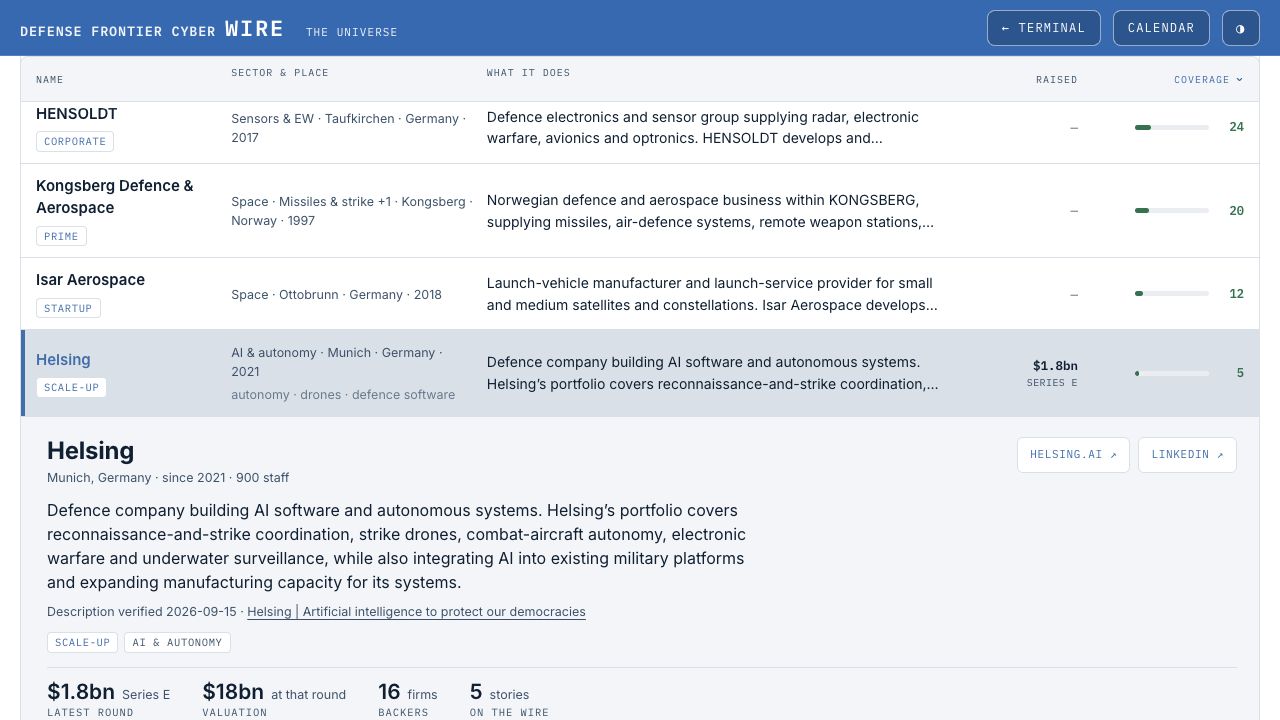
Move from a company to its wider context
 Open full-size ↗
| Section | What you can learn |
|---|---|
| Overview | What it does, where it is based, founding year, staff and organization type where available. Description verification has its own date and source; it does not date every fact on the page. |
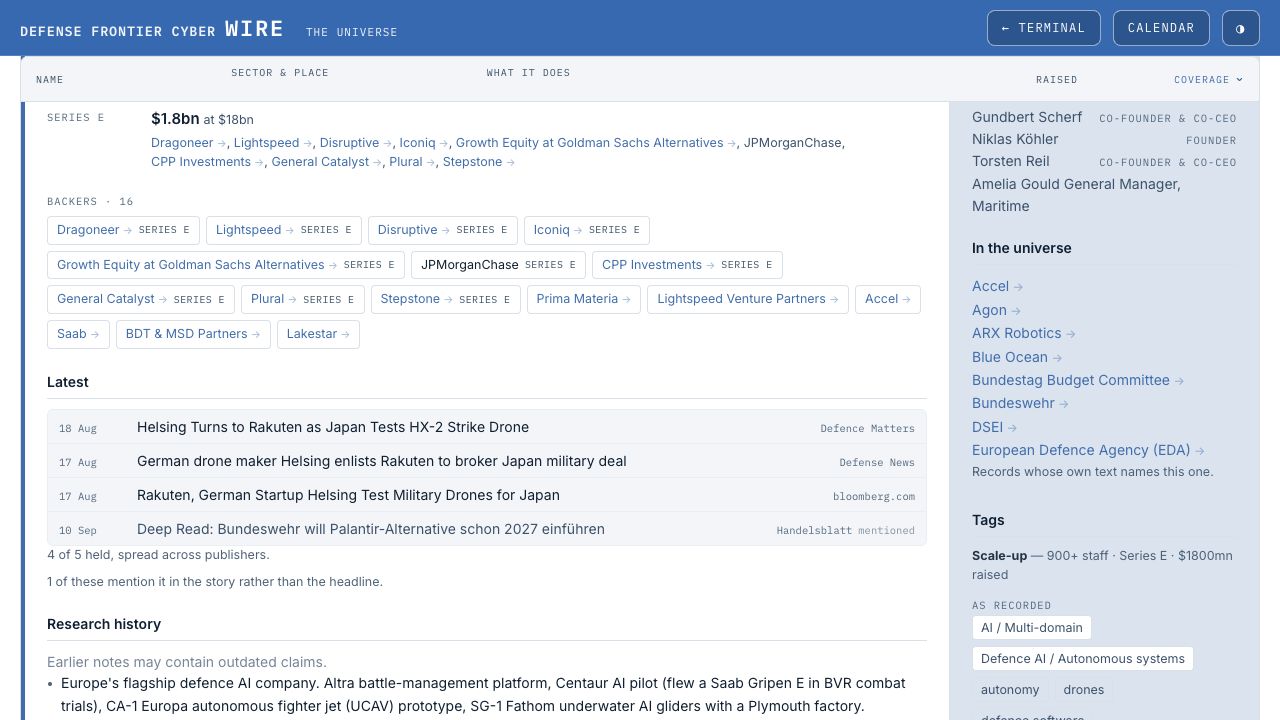
| Money & backers | Recorded rounds, valuations and investors. Arrow buttons open linked organizations, so you can follow relationships across the directory. |
| Latest | A selection of retained coverage with dates and publishers. Some items mention the organization in the text rather than the headline; this is labelled. |
| Research history | Earlier research notes. These can contain outdated claims and should be read as history, not silently treated as the current description. |
| People | Recorded founders and leadership roles, where known. Titles can change; verify at the organization’s source. |
| In the universe | Other records that mention or connect to this organization. A cross-reference is not automatically an ownership link. |
| Tags / Register | Classification vocabulary and available official-register information. Follow the original registry to confirm legal identity and current details. |
 Open full-size ↗
Website and LinkedIn links open externally. A direct link from a Deals party card can open a specific Universe record even when its display name differs. Close an open record by selecting its name again.
11 · Calendar
Plan around the industry diary
Open CALENDAR for exhibitions, conferences, summits, air shows, investor events and other dates. Events are grouped by month.
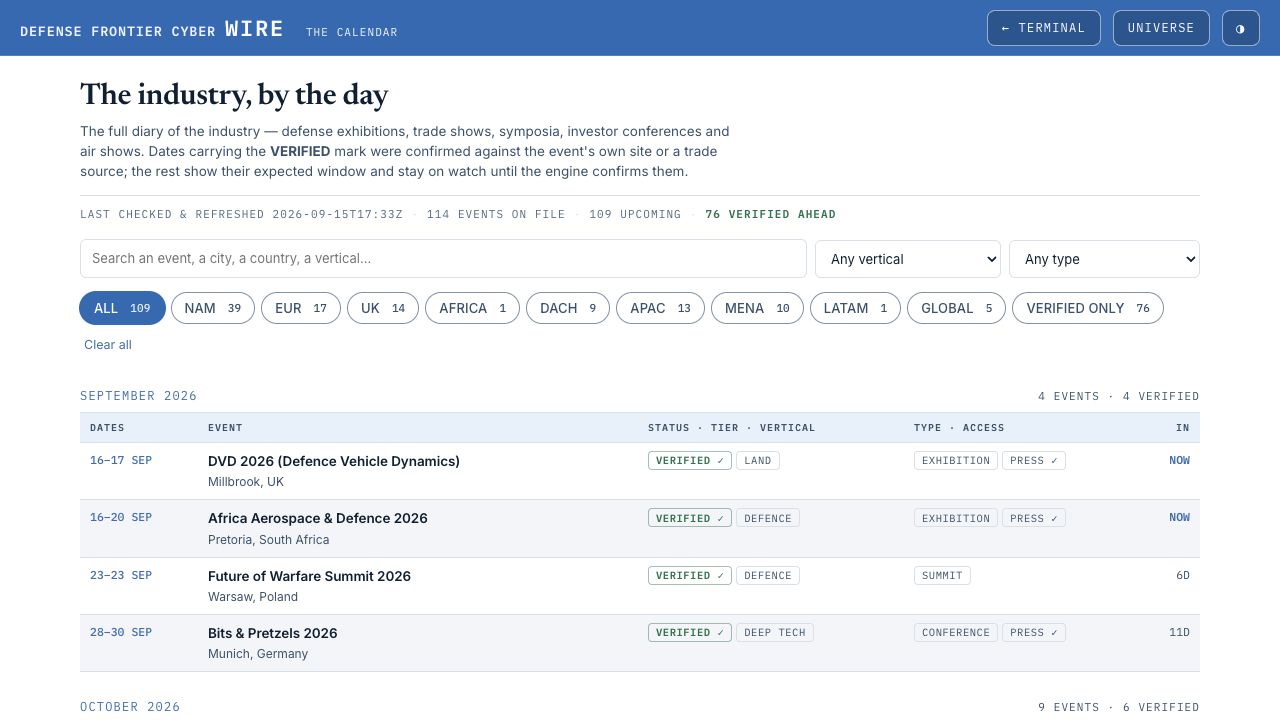 Open full-size ↗
- Find the right eventSearch its name, city, country or vertical. Combine Any vertical, Any type and the region buttons.
- Check the dateVERIFIED ONLY narrows to dates checked against a source. A ~ marks an approximate window. The countdown is to the displayed date; NOW means currently under way.
- Open the organizerClick the event name for the official website. Confirm dates, tickets, attendance and accreditation there before arranging travel.
Region abbreviations include NAM (North America), DACH (Germany, Austria and Switzerland), MENA (Middle East and North Africa), APAC (Asia-Pacific) and LATAM (Latin America). Clear all resets the search and filters.
TIER 1 is an editorial relevance marker. PRESS ✓ indicates recorded press access information; it is not accreditation or a ticket. “Verified” means checked at the time stated, not guaranteed never to change.
Submit an event
At the bottom, fill in SUBMIT YOUR EVENT. Event name and official website are required; dates, place, type, email and notes add useful context. Press SUBMIT FOR VERIFICATION and wait for the status message. Submission does not immediately publish an event.
12 · Reports
Read beyond the daily news
- Open Reports
- Choose a report
- Read the analysis
- Check the sources
Open Reports for conference reports and the public research library. Choose Conference reports for an edition’s takeaways, analysis and sources. Browse the research library in Magazine or Register view, filter by topic or publisher, and follow a publication to its original source. Publisher access conditions are shown on each entry.
13 · Make it comfortable
Use the keyboard or a smaller screen
The Wire uses the same navigation keys as the Entertainment Wire. Press ? anywhere on the feed outside a text field to bring up the shortcut sheet, or choose Show keyboard help in the footer. Close it with ?, Esc or CLOSE; focus returns to where you were reading.
- ↓Select a headline
- →Read its details
- ORead the original source
- ←Close the details
On the terminal, J/K also move down/up. Letter shortcuts use the unshifted letters. Enter opens the selected story or activates the control you are focused on. Use Shift + Tab to move backwards.
Esc works from the inside out: it closes keyboard help first when open; otherwise it leaves a text field, closes an organization card or story, then clears a search/company selection. It is not a universal reset of every category, source or time filter. Reset category, source, time and region with their individual controls. The terminal wordmark clears search and company selection and returns to the top.
Story shortcuts work when the feed page has focus and you are not typing into a form. Help keeps keyboard focus inside its sheet; use Tab to reach CLOSE. Browser shortcuts using Ctrl, Command or Alt keep their usual meaning. Story keys do not navigate Deals, Universe or Calendar; use Tab and Enter for their controls. The shared header’s / search shortcut is also available on other Wire pages.
On a phone or tablet
The Desk starts collapsed on a phone unless you have saved another preference. Open FILTERS for the feed controls and MORE for hidden categories. Supporting panels fold above the feed. Swipe horizontally inside wide tables and the clocks strip when needed.
Light, dark and larger text
Use ◐ / ◑ to switch palettes. Your choice is saved in this browser. Browser zoom and text scaling remain available. This guide’s screenshots open at full size, and its Print / save as PDF button includes the FAQ answers.
Keep the Wire close
Bookmark dfcwire.com or use your browser’s Install / Add to Home Screen option when available. The installed shortcut still needs an internet connection and normal account access; it does not create an offline news archive. If it opens in a separate browser context, sign in there with a fresh email link.
If an Analytics cookie consent prompt appears, choose ACCEPT or DECLINE. That choice is separate from signing in and managing your subscription.
14 · Help improve the Wire
Send a useful correction or report
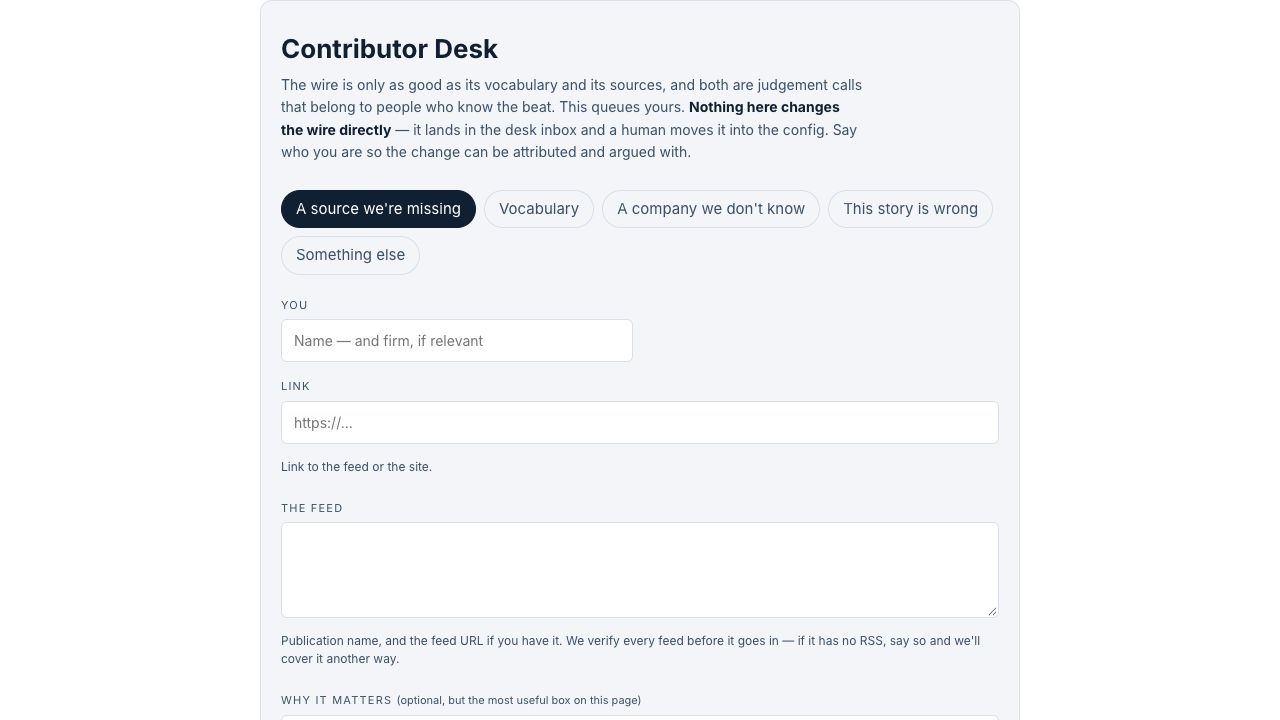 Open full-size ↗
A content correction or suggestion
Open the Contributor Desk. Choose A source we’re missing, Vocabulary, A company we don’t know, This story is wrong or Something else. Add your name, a relevant link and the reason. Wait for the confirmation after sending.
A broken control or page
Use Report a bug beside the version in the terminal footer. Describe what happened and, optionally, what you expected. The report includes page/build context, the selected story when available, and your signed-in identity for follow-up.
Suggestions are reviewed; sending one does not directly edit or publish Wire content. For sign-in, billing or a page you cannot reach, email hello@axiom.vc. For subscription changes, tobias@axiom.vc is also the contact shown in the billing flow.
- What happened?
- Page or story link
- Expected result
- Source or screenshot
Include the original source when correcting a fact. Avoid forwarding a sign-in email or including a payment-card number in a report.
15 · Your account
Billing, renewal and cancellation
For an individual monthly or annual subscription, sign in to the Wire and choose MANAGE in the footer. It opens the billing portal for the account attached to that email.
- Sign inUse your billing email
- MANAGEWire footer
- Billing portalChoose the action
- Review & confirmKeep the confirmation
| I want to… | Where to go |
|---|---|
| Cancel renewal | Open MANAGE, select the subscription and follow the cancellation steps offered. Check the effective date and final confirmation. If unavailable, email tobias@axiom.vc from the account address. |
| Change my payment card | Open the portal’s payment-method area, update the card there and save. Payment details are entered in the billing portal, not into a Wire support message. |
| Download an invoice | Open billing/invoice history, select the invoice and use its download option. If the invoice is missing, check the account email or contact support. |
| Change my plan | Use the change-plan option if the portal offers it. Review the price, billing interval and effective date. Otherwise contact support; do not create a second subscription to make a change. |
| Update billing details | Use the details fields the portal provides. Ask support about correcting an issued invoice or changing your sign-in email; changing a billing contact does not necessarily change your Wire login. |
| Add team members | Use the Team or Enterprise contact on Plans & pricing. Each person should have their own access. Team provisioning is handled with the desk. |
Available portal controls depend on the subscription and billing configuration. MANAGE is not shown for every invited account; absence of that button does not prove you are being billed. The invitation, order confirmation and billing portal identify your actual offer.
Sign out and cancel are different. Signing out ends a browser session. Cancellation stops renewal according to the confirmed effective date. Closing a tab, deleting a bookmark or removing a Stream Deck profile does not cancel billing.
Check Plans & pricing for current prices, trial details and tax presentation. Review the checkout’s final amount and renewal terms before purchase. Use the FAQs below for common billing and access problems.
16 · Your physical shortcut panel
Elgato Stream Deck Neo
Keep the Wire’s main destinations a button press away. The Neo has eight LCD keys in two rows of four, an Infobar and two Touch Points for moving between pages. The DFC reader setup uses Elgato’s built-in Website actions and opens the normal site in your browser.
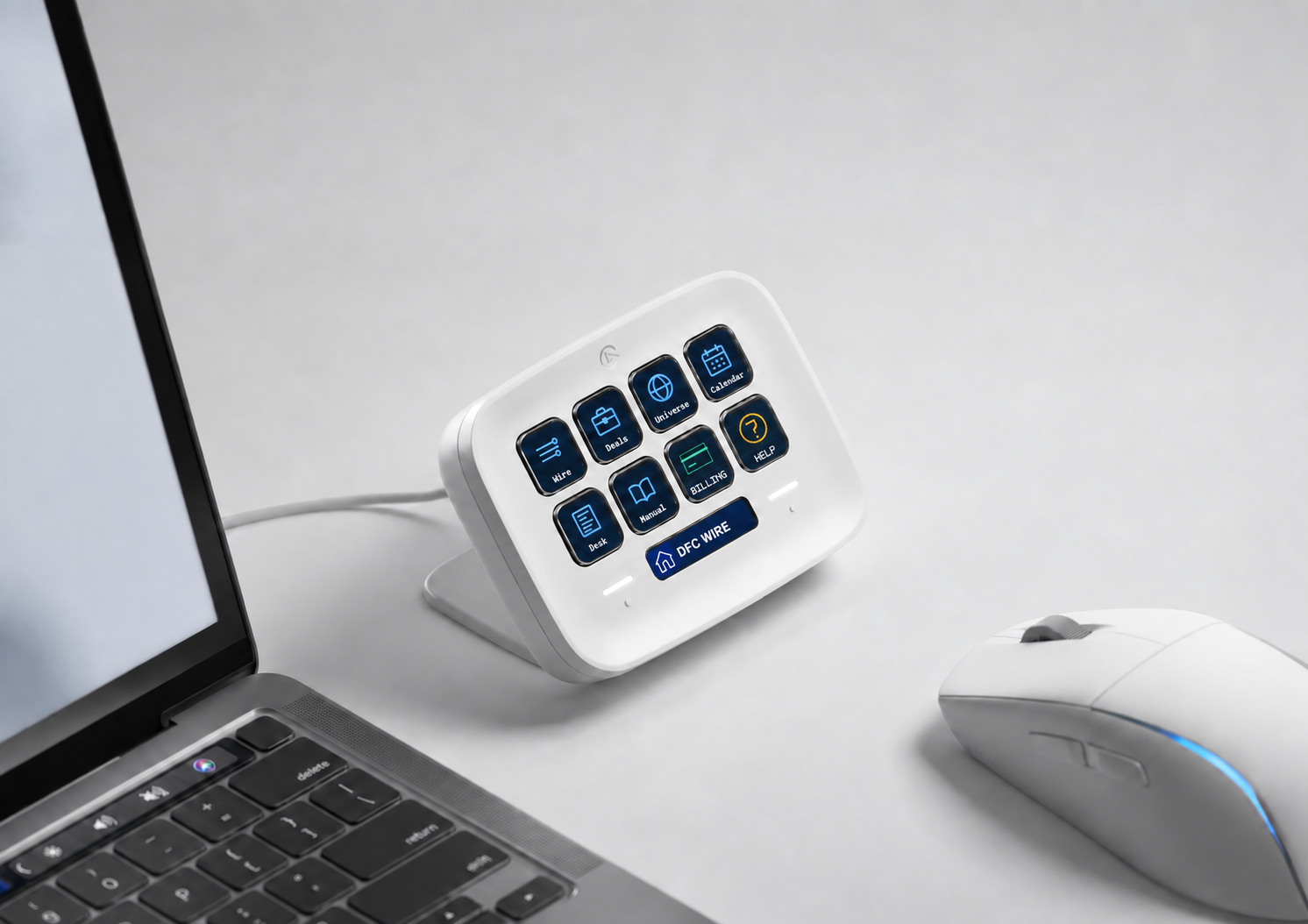 View the DFC layout ↗



Download the DFC reader setup
The starter ZIP includes a native Neo profile, eight button icons, a visual key map, CSV/JSON mappings and a standalone setup guide. It uses the original DFC symbols for Wire, Deals, Universe, Calendar, Desk and Manual, plus reader buttons for Billing and Help.
Version 2 · 17 September 2026 · Profile structure and download contents checked. Import and physical-button operation still need verification on your device.
- Install Elgato’s appDownload Stream Deck from Elgato, connect the Neo and select it in the app. Keep a backup of any profile you already use.
- Import the DFC profileExtract the ZIP and double-click DFC-Wire-Neo.streamDeckProfile. Follow the app’s import flow and select DFC Wire — Reader Neo. If needed, use the manual setup instructions in the included guide.
- Test the eight keysEach should open its named page. Sign in through your normal browser when asked. The profile contains no account credentials and does not grant a subscription.
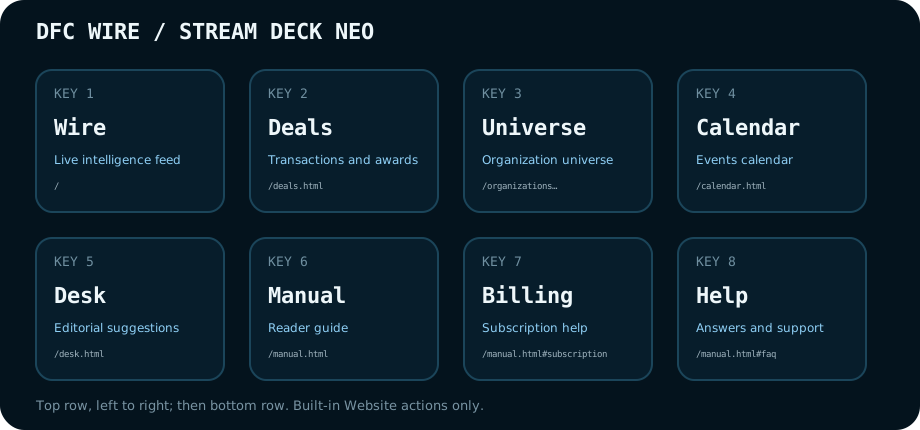 Open the key map ↗
Open the reader key map ↗ for the exact position and destination of each reader button.
Manual setup: drag System → Website onto each key, paste its URL from the included key map, and choose the matching PNG icon. Leave background GET off so the page opens visibly. Billing opens this guide’s subscription section; press MANAGE on the signed-in Wire to reach your personal billing portal.
Optional second page: use Elgato’s Hotkey action for the terminal shortcuts. These act on the focused application: open the Wire and leave text fields before using them. The Touch Points switch pages; they are not two additional general-purpose shortcut keys.
If a key opens the wrong browser, check your operating system’s default browser. If it opens a login screen, sign in in that browser. If a key is blank, reassign the included icon and Website action.
Hardware and action references: Elgato Neo guide and Elgato System actions. DFC’s profile is an independent setup, not an Elgato endorsement.
17 · What comes next
New features and guide updates
Return to this guide as new features become available. Each update will explain what you can do, where to find it and how to get started.
- Feature releasedAvailable on the Wire
- Guide updatedVisual steps and answers
- Setup downloadsUpdated when needed
New features will be documented here
This is a living manual. Each released feature will have its own section, visual walkthrough, access requirements and troubleshooting answers. Unreleased features are not included in your current controls simply because space is reserved for them.
The Stream Deck section is ready for additional pages and updated downloads. Check the guide’s update date and the setup version before replacing your own customized profile.
This edition: visual reader walkthroughs, email-link sign-in, subscription help and the DFC reader Neo setup. No release dates for other new features are promised here.
18 · Questions, answered
FAQ & troubleshooting
Choose a question to open its answer. Each starts with a short route to the relevant control. You can also search the whole manual with Find an answer.
- Choose your question
- Follow the control path
- Still stuck? Contact support
Signing in
How do I sign in now?
Use the email attached to your invitation or subscription. Open the newest sign-in email in the browser you want to use. No password is required. If an older Access screen also shows a key box, use the email form below it. See the sign-in walkthrough.
The sign-in email has not arrived. What should I do?
Check spelling and the inbox used at checkout or invitation, including spam and corporate quarantine. Allow the message time to arrive, then request a fresh link. The screen gives a generic confirmation even when an address is not recognized. If it still fails, contact hello@axiom.vc from your account email; never send payment-card details.
Why does a sign-in link say expired or already used?
Sign-in links expire after 15 minutes and work once. Request a new one and open it promptly. Some corporate email security scanners can consume one-time links; tell support if a fresh link is already used before you open it.
Can I use another browser, phone or computer?
Yes. Request a fresh email link for that browser. The browser session is remembered locally; private browsing, clearing site data or signing out can require another sign-in. If your email app opens the wrong browser, open the fresh link in your intended browser without sharing it.
Is my invitation code a password?
No. A code identifies an invitation or offer. Follow the invitation’s own redemption steps, then use email sign-in for return visits. A code is not a password to paste into the Wire. If redemption fails or the offer differs from what you expected, ask the person who invited you or contact support.
I have paid, but the ledger is still locked.
Use the exact account address used at checkout. Refresh after signing in. If full access still has not appeared, send support your account email, purchase date and the page that is locked. Do not buy a second subscription to fix it.
Where do I reset my password or change my email?
The email sign-in flow has no password to reset. Contact support from your current account email to arrange an email change. Changing an invoice’s billing contact does not necessarily change the address you use to sign in.
Reading and finding information
Why is the feed empty or showing fewer stories?
Filters combine, and some are remembered in this browser. Clear the search, selected category, source, region, company and storyline. Select 14D·ALL for the current rolling feed. The terminal wordmark clears search and company selection; reset the other filters individually. A load-error message needs a retry; it is different from a search with no matches.
Does search cover every past article?
No. Terminal search covers the loaded rolling feed, currently up to 14 days, rather than a full historical archive. 14D·ALL means the full loaded feed. The Universe and Calendar have separate search fields and can find relevant records beyond the terminal results.
How do I know whether I am seeing the latest edition?
Read the feed’s update time separately from each article’s publication age. When the new-stories prompt appears, select it to load the newer edition. If a feed or panel reports an error, retry after checking your connection. A successfully loaded page is not proof that every underlying source has just updated.
Why does a source article ask me to subscribe again?
A DFC subscription provides DFC access. It does not include the publisher’s separate subscription. The source link opens the publisher’s own site and terms.
Why do two numbers or transaction labels disagree?
A ceiling, obligation, valuation and amount raised can all be different. An older report may also use an earlier figure. Read the dossier’s source history, status and evidence labels. Currency filtering does not convert currencies. If the source is misread, report the specific record and source link.
Why is a company, event or field missing?
Coverage is curated and incomplete. A blank funding field means no usable amount is recorded, not zero. A company may match a backer or description even when its name differs from your search. Check the record’s dates and linked sources; use the Contributor Desk to suggest additions with evidence.
How do I report a duplicate or incorrectly grouped story?
Include the headline, page URL and both source links, and say what was grouped or linked incorrectly. The signed-in Report bug flow can attach useful page context. Suggestions are reviewed before they change the Wire.
Why is Listen or a translation missing?
These controls depend on the item and your browser. Not every story has a translation or usable audio. LISTEN reads supported text with the browser’s available voice; check device volume and stop playback with STOP. When a translated headline is present, use the original/source controls to compare the original wording.
Can I use the Wire on a phone or with the keyboard?
Yes. Panels can fold above the feed on smaller screens, and wide tables may scroll sideways. Tap headings to expand them. On the feed, press ? or choose Show keyboard help in the footer. Shortcuts work outside text fields; see the visual shortcut map and reading sequence. Light and dark mode are available from the theme button.
Subscriptions and billing
Where do I manage my subscription?
On the signed-in Wire, choose MANAGE in the footer. It appears for eligible monthly or annual accounts. The portal shows the billing controls enabled for your subscription. If MANAGE is absent or returns an error, contact tobias@axiom.vc rather than starting a second subscription.
How do I cancel renewal?
Follow the cancellation option in the billing portal, review its effective date and complete the final confirmation. Keep that confirmation. If no cancellation option is available, email tobias@axiom.vc from the account email. Signing out, removing the app shortcut or closing the browser does not cancel renewal.
How does a trial end, and can I stop renewal during it?
The checkout and your order confirmation state whether your offer includes a trial, its length and the charge that follows. Check the portal’s next billing date and cancel renewal through its available controls before that date if you do not want it to continue. Invitations can have different terms; do not assume another reader’s offer applies to yours.
When will I be charged, and when does access end?
Read the next billing date and amount in your billing portal. When you cancel, the confirmation gives the effective end date. A cancellation request and an immediate end of access are not always the same. Ask support if the portal dates and your confirmation disagree.
How do I download an invoice or receipt?
Use the invoice or billing-history area offered by the portal. Check the account email if a payment is missing. For an invoice correction or an unavailable receipt, send support the invoice reference and required company details.
How do I update a card or resolve a failed payment?
Enter the replacement payment method in the billing portal and follow any instructions for an unpaid invoice. A card update alone may not settle an existing invoice automatically. Refresh the Wire after payment completes; contact support if access does not recover. Never email full card details.
Can I change from monthly to annual, or the other way round?
Use the portal’s plan-change option when available. Review the interval, amount due now, any credit and the effective date before confirming. If the option is absent, contact support to arrange the change without a duplicate subscription.
How do I add seats or arrange team access?
Use the Team or Enterprise enquiry on the pricing page. Include your organization and required seats. Give each person their own access; do not share one browser session. Contact the desk for changes to a managed team arrangement.
I was invited. Am I paying for access?
An invitation can carry a specific offer, including complimentary access. Read that offer and any checkout confirmation. MANAGE appearing or disappearing alone is not a reliable bill. Ask support to confirm the account’s billing status if you are unsure.
How do I ask about a refund, tax or an unexpected charge?
Email tobias@axiom.vc with your account email, invoice reference and a short explanation. Current checkout terms and the applicable subscription terms govern the charge; the manual does not promise a refund. The pricing page and checkout show the current price and tax presentation.
I may have subscribed twice. What should I do?
Compare the account emails and invoice references and contact support before purchasing or changing anything else. Provide both references so the subscriptions can be identified. Do not send card numbers or sign-in links.
Stream Deck Neo and help
What do I need for the Neo setup?
Use an Elgato Stream Deck Neo and the current supported Stream Deck app from Elgato. The download contains eight Website actions and PNG icons; no third-party action plugin is needed. Use normal browser sign-in for DFC access. Download the profile and setup guide above.
What if the native profile does not import?
Check that the selected device is the Neo and that you extracted the ZIP. If the app rejects the native file, use the included setup guide to create eight System → Website actions with the supplied URLs and icons. The archive structure is checked; native import and physical keys have not yet been tested on your device.
A key opens a login screen or the wrong browser.
Website actions use your default browser. Set the browser you intend to use, then sign in to the Wire in that browser. The profile carries no credentials and does not bypass account access. Billing opens subscription help; use MANAGE on the signed-in Wire for your private portal.
Why is a Neo button blank, and can I add more features?
Reassign the matching PNG from the icons folder and check the URL against the key map. Keep the title hidden if using the supplied labeled icon. Add another page for your own shortcuts or future Wire features; use the Neo Touch Points to move between pages. Back up customized profiles before importing an update.
What should I include when asking for help?
Use Report bug when signed in, or email hello@axiom.vc. Include the page, time, browser/device and steps to reproduce the problem. A screenshot helps; remove personal billing details and sign-in links. For subscriptions, use tobias@axiom.vc and include your account email.